The iCloud for Windows Verification Failed error is preventing some Windows users from signing in to iCloud, even when their Apple Account credentials work correctly in a web browser. The error message reads:
Verification Failed. There was an error connecting to the Apple Account server.
Multiple Windows PCs have reported this issue, affecting sign-in through iCloud for Windows. Some users have also reported similar authentication failures in Apple Music and iTunes for Windows.
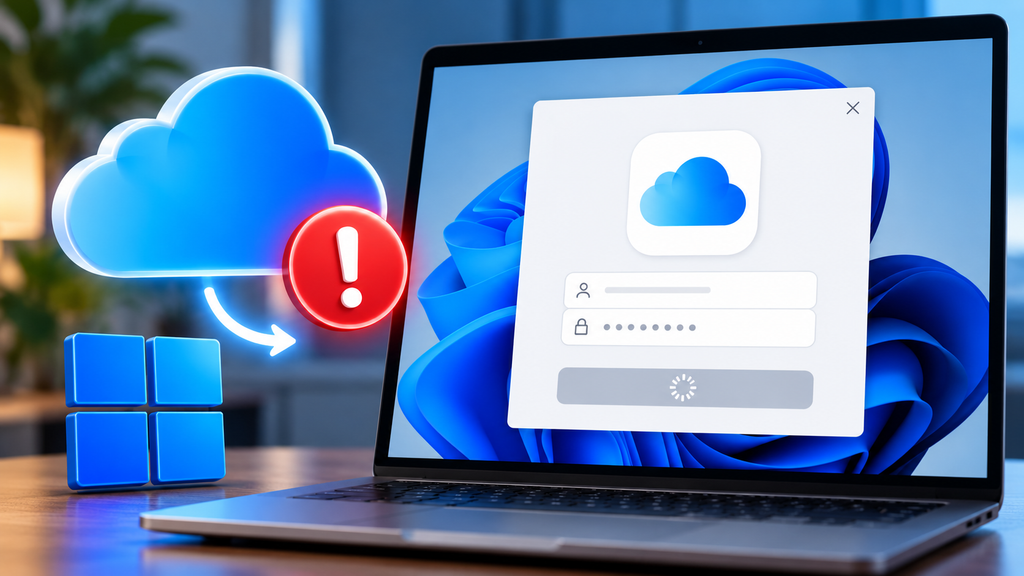
Table of Contents
Why Does iCloud for Windows Verification Failed Appear?
The error indicates that the app cannot complete authentication with Apple’s account servers. It does not necessarily mean your Apple ID password is incorrect.
In the reported cases, users could sign in to iCloud through a browser but received the verification error in the Windows app. Some users also experienced the problem on more than one computer, while others reported that sign-in started working again without making any changes.
These symptoms suggest a possible service-side authentication issue.
How to Fix iCloud for Windows Verification Failed
Try the following steps before reinstalling Windows or making major system changes. No direct fix for this error has been found yet.
Verify Your Apple Account in a Browser
Open iCloud.com and sign in using the same Apple Account.
If browser sign-in works but the Windows app fails, your credentials may be valid, and the problem may be specific to the app’s authentication process. In that case you do not need to do anything.
Check the Date and Time Settings
Incorrect system time can interfere with secure connections.
- Open Settings using
Win + I. - Select Time & language > Date & time.
- Enable Set time automatically and Set time zone automatically, if appropriate.
- Click Sync now if the option is available.
- Restart iCloud for Windows and try signing in again.
Temporarily Test Your Network and VPN
If you use a VPN, proxy, third-party firewall, or antivirus software with HTTPS inspection, temporarily test whether it affects the connection. Re-enable your security protections after testing.
You can also try another trusted network, such as a mobile hotspot. If the error persists across different networks and computers, repeatedly changing network settings is unlikely to be useful.
Repair or Reset iCloud for Windows
If the problem appears limited to the app, try its built-in repair and reset options.
- Open Settings > Apps > Installed apps.
- Find iCloud.
- Click the three-dot menu and select Advanced options, if available.
- Select Repair and test sign-in.
- If the issue remains, select Reset and try again.
Resetting the app may remove local app data or require you to configure its settings again. Make sure you understand the implications before proceeding.
Update iCloud for Windows
Open the Microsoft Store and check for iCloud updates. Install any available update, restart Windows, and test the sign-in process again.
If the app is already up to date, reinstalling it repeatedly may not help. Several reports describe the same error continuing after reinstallation.
What If None of These Steps Work?
If you can sign in through a browser but iCloud for Windows keeps showing the same error, avoid repeatedly reinstalling Windows, changing your Apple Account password, or disabling security features unless you have evidence they’re responsible.
The reports associated with this issue show that the problem has affected multiple devices and has sometimes resolved without any local changes. That makes a temporary authentication-side issue a possibility, not a confirmed diagnosis.
Check Apple’s system status periodically and contact Apple Support if the error continues. Include the exact message, your Windows version, your iCloud app version, and the troubleshooting steps you have already attempted.
Summary
The iCloud for Windows Verification Failed error can occur even when your Apple Account works normally in a browser. Start by checking Apple’s service status, verifying your system time, testing the network, and repairing or updating the app.
If the error persists across multiple devices, the cause may be outside your local Windows installation. Since no universal fix has been established for the reported cases, use the results of these checks to guide further troubleshooting.
Filed under Reddit.