Check out the details regarding Xbox Error 0x87DD0005 seen after installing KB5127648
Since Yesterday, several users have been hitting Xbox error 0x87DD0005, which is preventing some Windows users from signing in to Microsoft games, including Microsoft Solitaire Collection, Mahjong, and other Xbox Live-enabled games. The issue affects Windows 10 and Windows 11, and some users encounter it after installing the October 2026 Windows updates.
In affected cases, users can sign in to their Microsoft account through a browser or the Xbox app, but the games fail to authenticate and may open in Guest mode. This can prevent access to saved progress, settings, and other account-linked features.
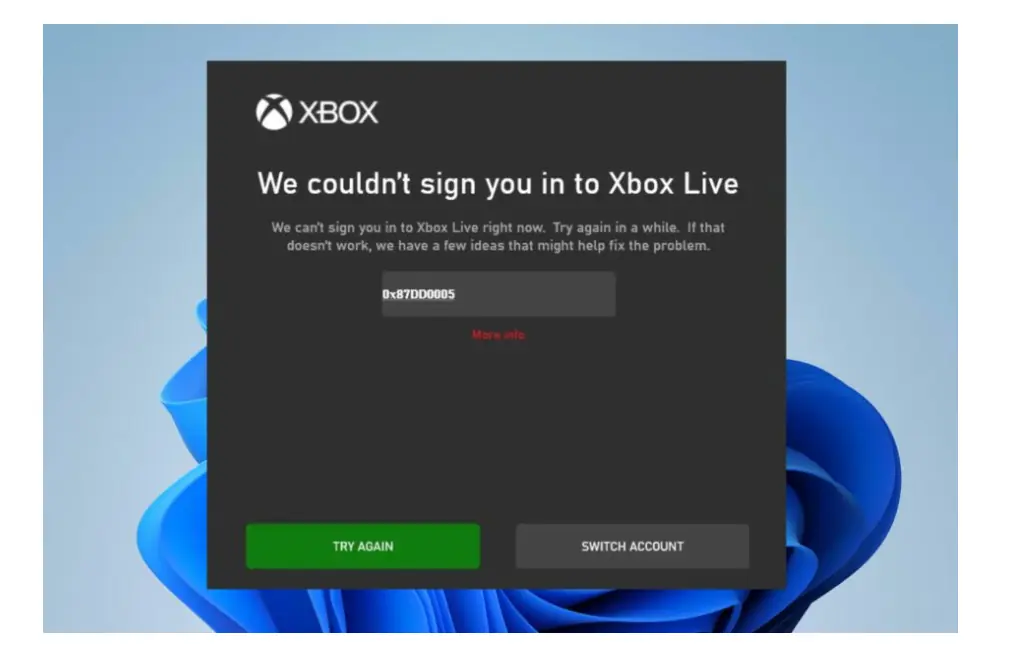
Table of Contents
Initial Thoughts on the Xbox error 0x87DD0005
The exact cause has not been conclusively established. Although the problem appeared after recent Windows updates for some users, reports indicate that uninstalling the updates, reinstalling games, resetting apps, and clearing saved credentials did not consistently resolve it.
The symptoms suggest a problem with the Xbox Live sign-in process used by Windows games. Browser sign-in and game sign-in use different authentication paths, which explains why the Microsoft account may work in a browser while the game displays Xbox error 0x87DD0005.
Some Proven solutions that helped other users
Check Xbox service status
Visit the official Xbox Status page to check for service disruptions. If the issue is related to Xbox authentication services, you may need to wait for Microsoft to resolve it.
Restart the Microsoft Account Sign-in Assistant
One reported workaround is to restart the Microsoft Account Sign-in Assistant service.
- Press Win + R, type
services.msc, and press Enter. - Find Microsoft Account Sign-in Assistant.
- Double-click the service and set its Startup type to Automatic, if appropriate for your system.
- Select Apply and OK.
- Right-click the service and select Restart, if available.
- Open the affected Xbox-enabled game and try signing in again.
Clear the Authentication folders
Clearing the Authentication folders should help as well:
- Close Microsoft apps that may be using them, such as Teams, Outlook, or Office.
- Press Win + R, type
%LOCALAPPDATA%, and press Enter. - In File Explorer, look for the OneAuth and IdentityCache folders.
- Delete them. If Windows says they’re in use, restart your PC and try again.
You can also open PowerShell and run:
Remove-Item "$env:LOCALAPPDATA\OneAuth" -Recurse -Force
Remove-Item "$env:LOCALAPPDATA\IdentityCache" -Recurse -Force
Deleting these folders may sign you out of Microsoft apps; you may need to sign in again.
Uninstall the latest updates
If multiple Microsoft games show the same error while browser sign-in and the Xbox app still work, reinstalling each game or resetting Windows is unlikely to help. Reports indicate these actions haven’t consistently resolved the problem.
Uninstalling the latest update might help, but it’s not a guaranteed fix.
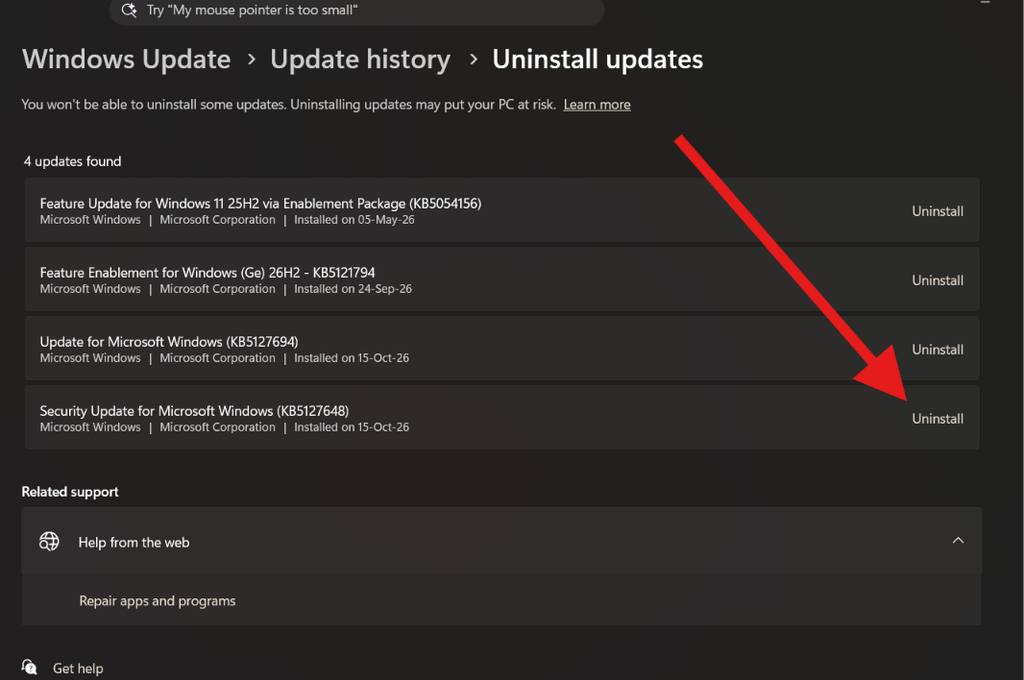
- Open Settings → Windows Update → Update history.
- Select Uninstall updates.
- Find Security Update for Microsoft Windows (KB5127648) and select Uninstall.
- Restart if prompted.
Final Thoughts
Xbox error 0x87DD0005 can prevent Windows games from connecting to Xbox Live even when the Microsoft account itself works normally. The issue has been reported alongside the October 2026 Windows updates, but a direct link to those updates has not been conclusively established. Check Xbox service status first, try the reported Sign-in Assistant workaround, and avoid unnecessary reinstalls while the authentication issue is investigated.