Clean up a messy spreadsheet in minutes, without deleting rows you actually need
Blank rows in Excel are more than just an eyesore. They break sorting, mess up filters, and can throw off formulas and pivot tables. This guide shows ways on how to delete blank rows in Excel i.e. simple ways to find and delete blank rows, plus one common mistake that deletes rows you did not mean to touch.
Table of Contents
Why blank rows cause problems
A few empty rows scattered through your data can break sorting, filtering, and formulas that reference a range. Pivot tables built on data with blank rows can also give wrong totals. Cleaning them up first makes everything else in your sheet more reliable.
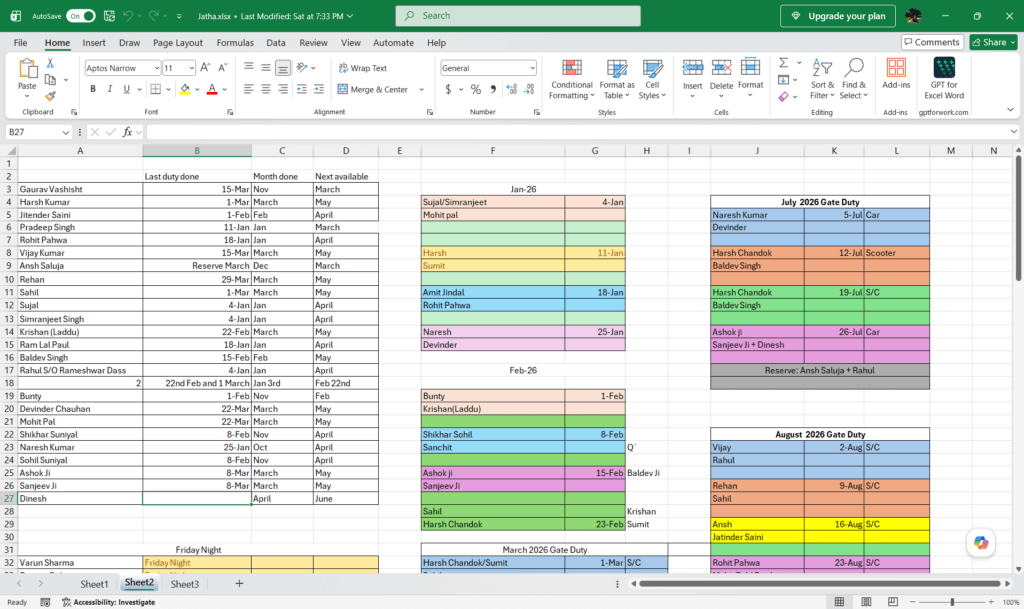
Before you start
Always work on a copy of your file before deleting rows. Excel’s undo (Ctrl+Z) works, but only until you close the file or make too many changes. A quick backup saves you from a bad afternoon.
Method 1: Go to Special (fastest way)
This is the quickest method, and it works in every version of Excel, old or new.
- Select the column where you want to find blank rows (not the whole sheet — more on why below).
- Press Ctrl + G to open the Go To dialog box.
- Click Special.
- Choose Blanks and click OK. Excel highlights every empty cell in your selection.
- Right-click any highlighted cell, choose Delete, then pick Entire Row.
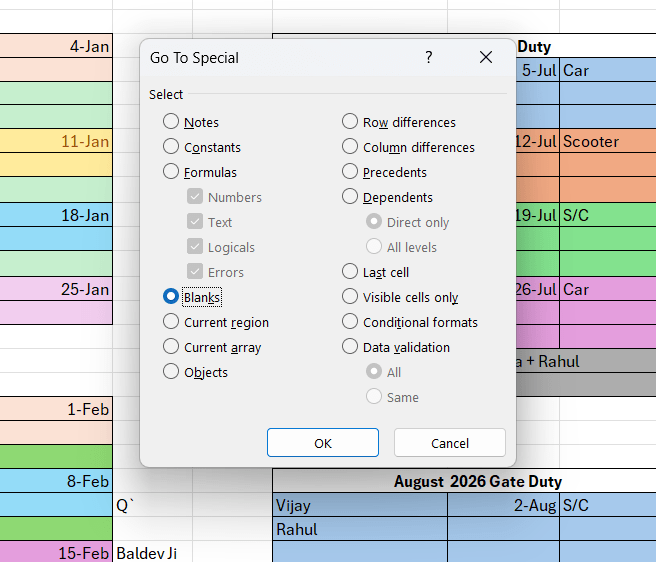
Important: Select only one column before doing this, not the entire sheet. If you select the whole sheet, Excel will delete any row that has a blank cell in any column, even if the rest of that row has data.
Method 2: Use Filter (safer for messy data)
Use this method if your data contains blank cells on purpose and you want to check rows before deleting them.
- Select your data range, then go to Data > Filter.
- Click the dropdown arrow on a column that should never be empty.
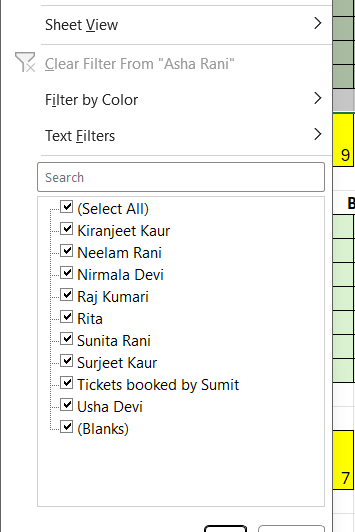
- Uncheck Select All, then check only Blanks.
- Click OK. Excel now shows only the blank rows.
- Select those rows, right-click, and choose Delete Row.
- Turn off the filter when you are done.
This method on how to delete blank rows in Excel is slower than Go To Special, but it lets you see exactly which rows you are about to delete.
Method 3: Sort
Sorting pushes all blank rows to the bottom, so you can delete them in one go.
- Add a helper column next to your data and number each row (1, 2, 3…). This lets you restore the original order later if needed.
- Select your data and sort it by the column most likely to be blank (Data > Sort).
- All blank rows move to the bottom of the sheet.
- Select and delete those rows.
- Sort by your helper column again to restore the original order, then delete the helper column.
Why will some blank rows not be deleted
If you are unsuccessful to delete blank rows in Excel in bulk, it might be because the Go To Special does not select all the empty-looking rows, the cells are probably not truly blank. This happens when a cell has:
- A space or invisible character
- A formula that returns an empty result, like
=IF(A2="","",B2)
Excel treats these as cells with content, not blank cells, so Go To Special skips them. To fix this:
- Use Find & Replace to search for stray spaces
- Or add a helper column with
=TRIM(A2)to check for cells that only look empty
Which method should you use?
| Method | Best for | Speed |
|---|---|---|
| Go To Special | Clean data, no partial blanks | Fastest |
| Filter | Messy data, want to review first | Medium |
| Sort | Large sheets, need full control | Slower |
To summarize, Go To Special is the fastest way on how to delete blank rows in Excel, but always select a single column first, not the whole sheet. If your data has partial blanks or comes from another system, use Filter or Sort instead so you do not delete rows you need.
Also check:
You can check out our other article here regarding Microsoft Office Copilot.